
Screen-share from any HubSpot record. Meetings log themselves.
Start a Swiftlook meeting from a Contact, Company, Deal, Ticket, or Lead. When the meeting ends, everything you need shows up on the record automatically — no manual logging.
Wherever you're clicking, Swiftlook is one click away.
You get all three the moment you connect. Use whichever you'll actually reach for while you're on a call.
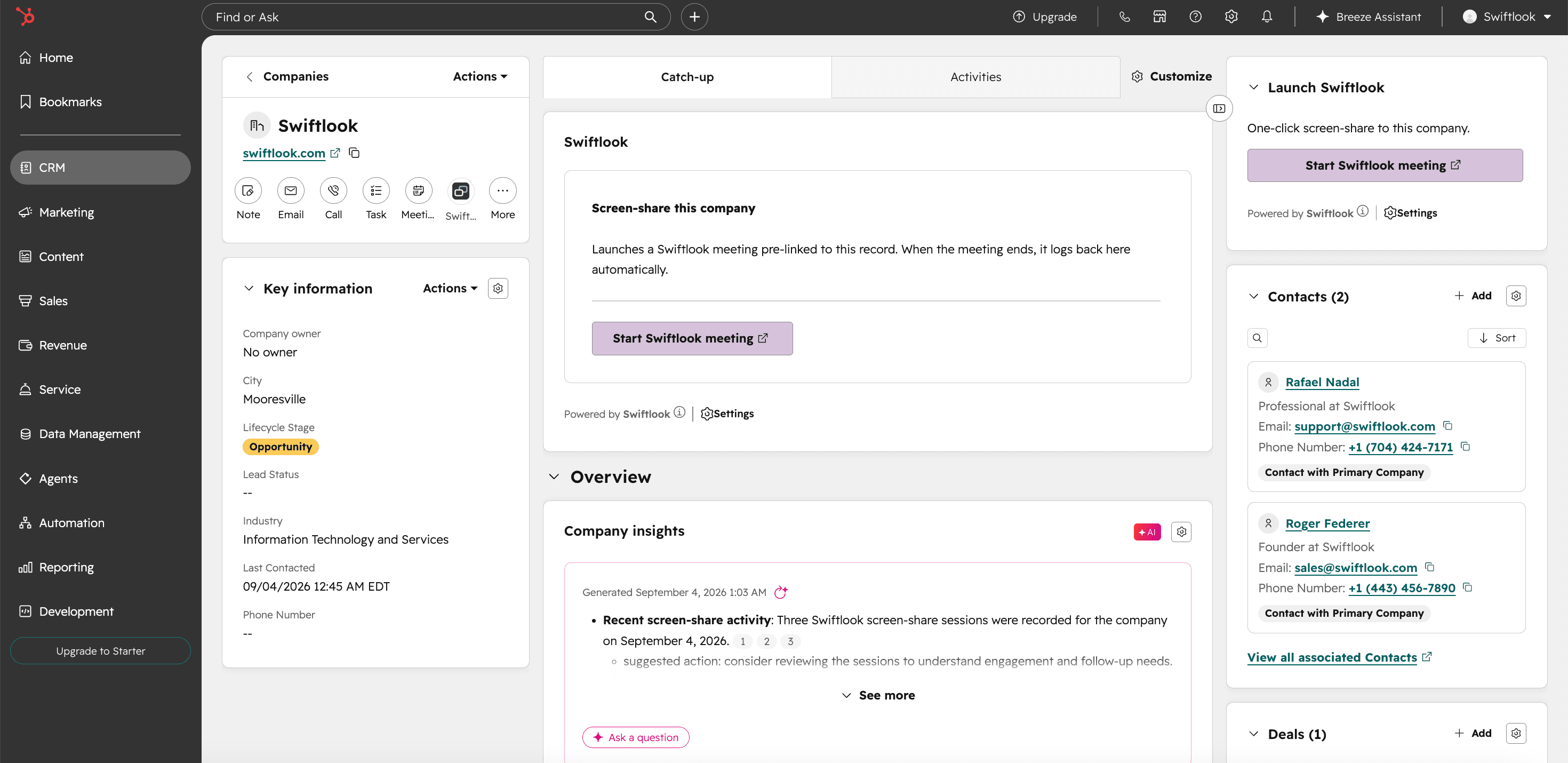
Works on Contact, Company, Deal, Ticket, and Lead records.
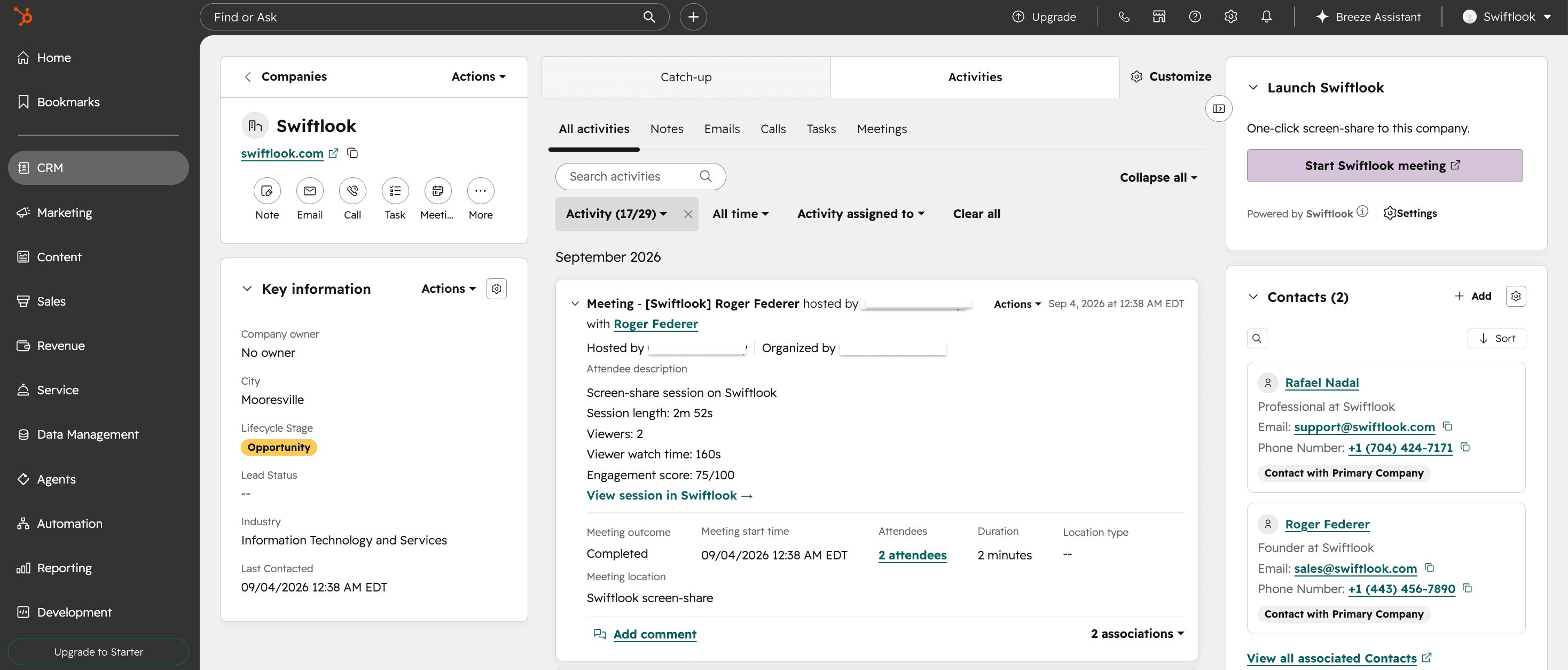
A native HubSpot Meeting shows up on the record when you're done.
Not a note, not a comment — a real Meeting engagement, exactly the way HubSpot logs your Zoom or Google Meet calls. Reports, filters, and workflows already know how to handle it.
- The meeting itself, on the contact’s timeline
- How long the meeting ran
- How many people watched and for how long
- An engagement score from 0 to 100
- A link back to view the full session in Swiftlook
- Attributed to the right rep automatically
Five new fields on every Contact, ready to use.
The first time you connect Swiftlook, we add five properties to your HubSpot Contacts. Use them in views, workflows, and reports just like any other property.
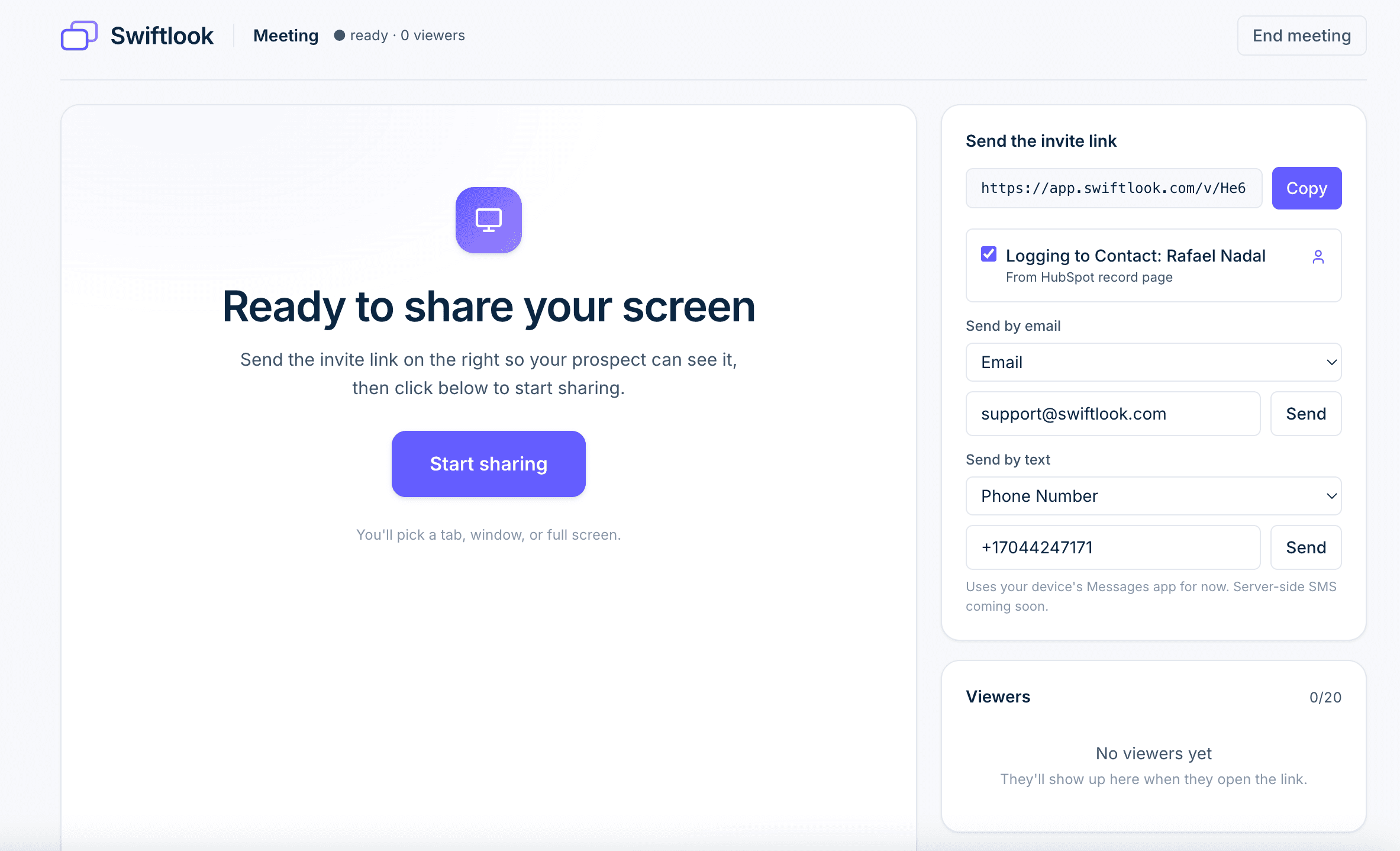
Launched from a Company with a dozen contacts? Pick who you're on the phone with.
If the record has more than one contact, the presenter tab shows a picker. If your contact has more than one phone or email, you pick that too. Whoever you invite is who the meeting logs to.
- All associated contacts on the record
- Every phone and email field — including your custom ones (work email, alternate phone, WhatsApp, etc.)
- Nothing to set up — Swiftlook reads your HubSpot fields automatically
Connect once. Your whole team is ready.
Two minutes end-to-end. Three screens.
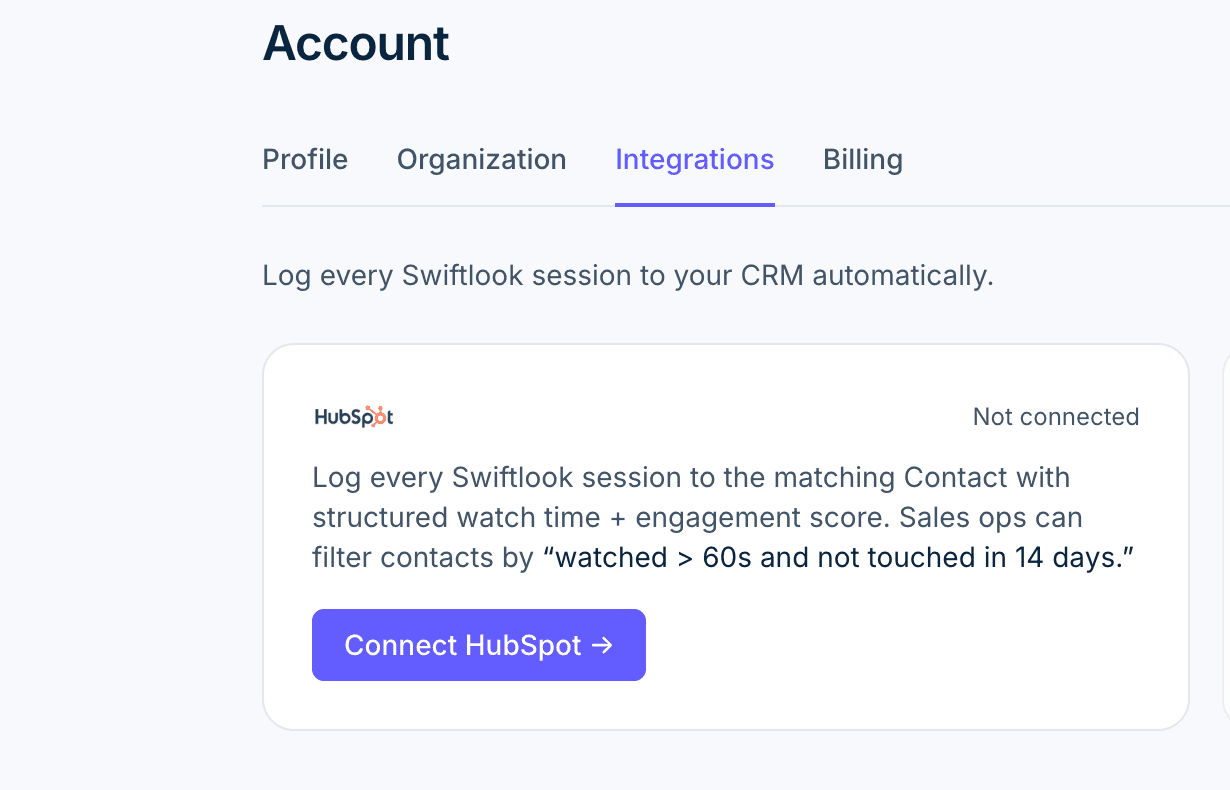
Click Connect in Swiftlook
An owner or admin opens Swiftlook → Account → Integrations, and clicks Connect HubSpot.
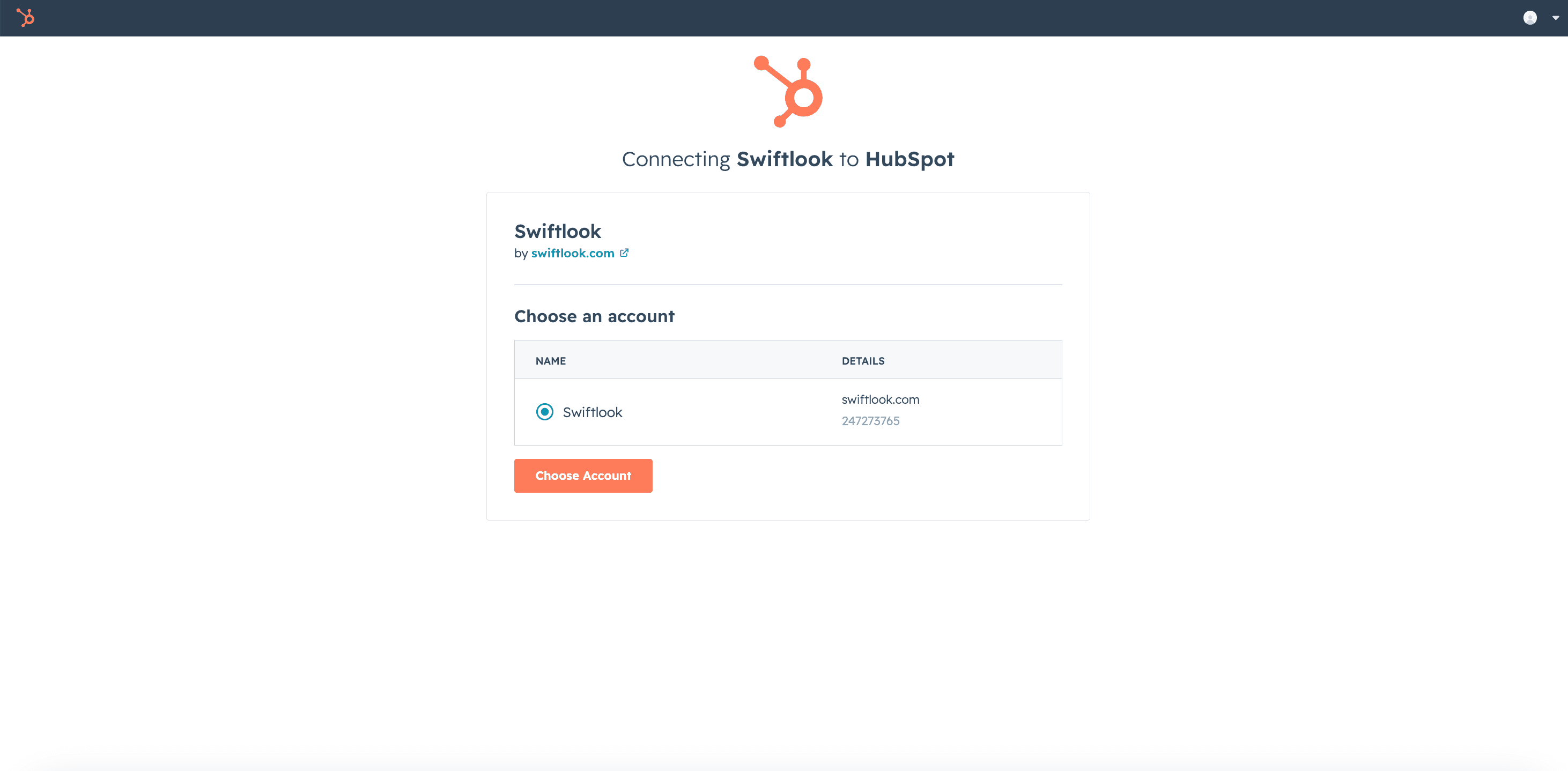
Pick your HubSpot portal
HubSpot asks which portal you’re connecting. Pick and hit Choose Account.
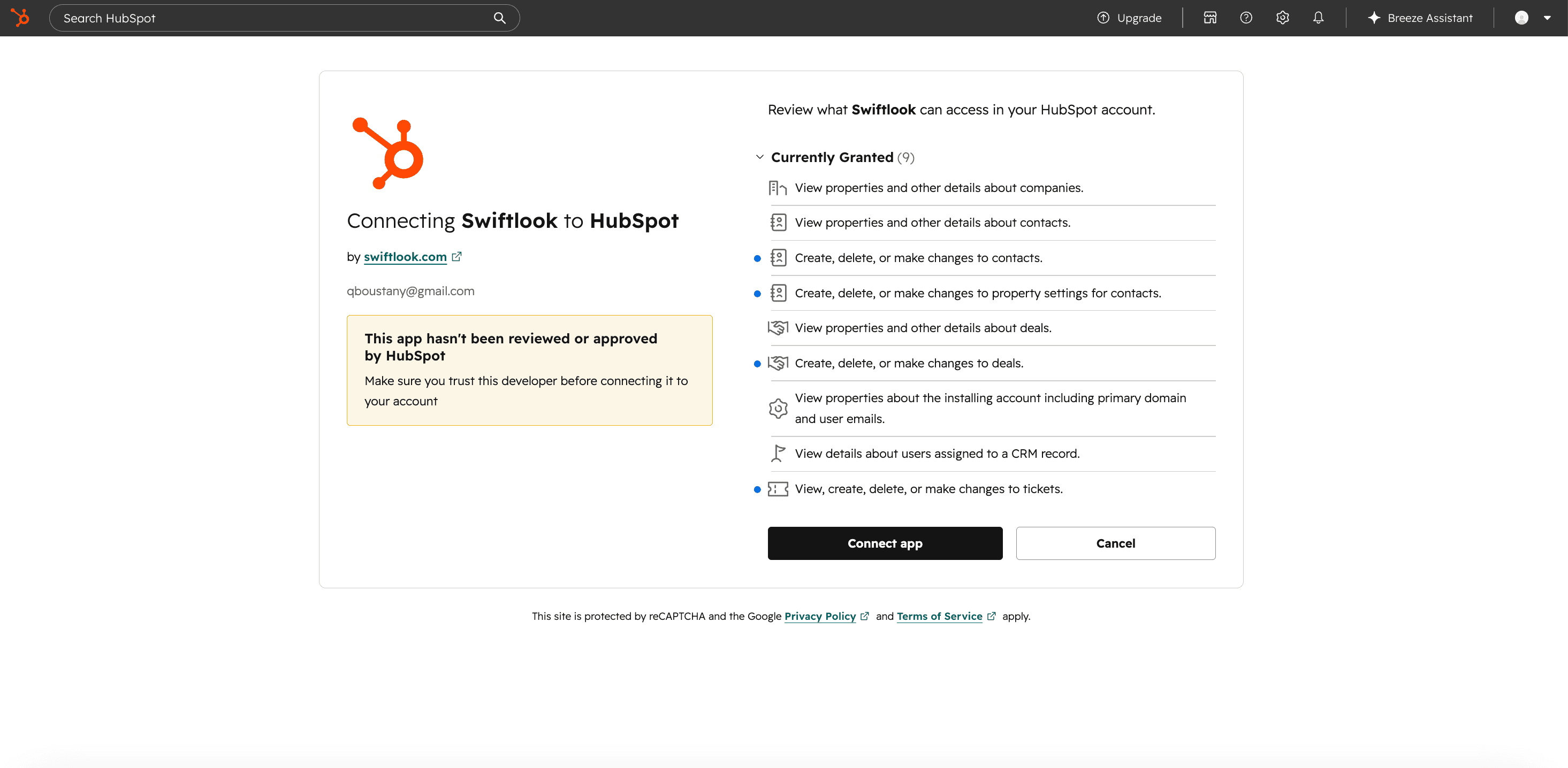
Approve permissions
Review what Swiftlook can read and write, then Connect app. That’s it — you land back in Swiftlook, the five custom Contact properties are auto-created, and every rep can start logging meetings immediately.
Your next call is in nine minutes.
Sign up now and you'll have a working share on your next demo.